Bilingual subtitles on YouTube
Watch YouTube with English plus translated subtitles, look up words by clicking them, study sentence by sentence and summarize videos.
Bilingual subtitles and the transcript
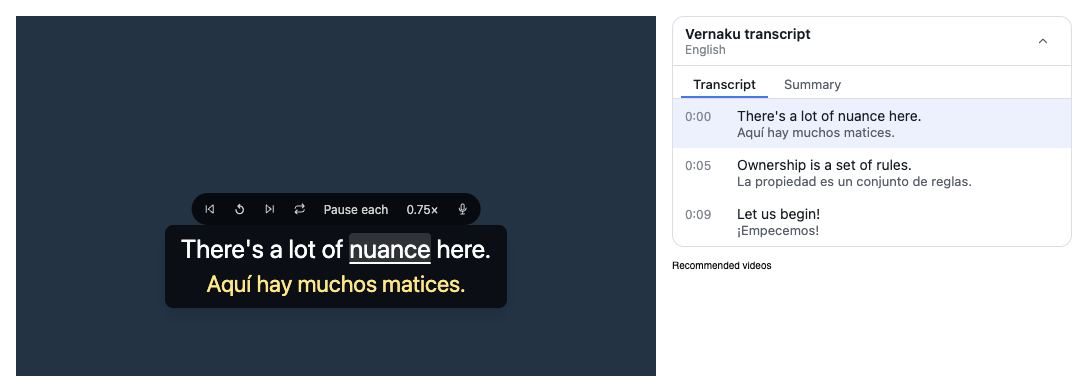
Open any YouTube video with captions: bilingual subtitles (English + translation) appear at the bottom of the video, and the whole transcript is listed next to it.
- 1
Click a word in the subtitles: the video pauses and the word card opens, where you can save the word. Closing the card continues playback.
- 2
With the pointer over the video: A previous sentence, D next, S replay, R repeat the sentence.
- 3
Point at the subtitles for more tools: pause after each sentence, 0.75× speed and shadowing. Subtitles sit at the bottom of the video; switch to “Floating” in Settings to drag them (⠿) to any height.
- 4
Click any sentence in the transcript to jump there.
Video summaries
The Summary tab next to the transcript writes an overview and timestamped key points.
- 1
Switch the transcript panel to the “Summary” tab.
- 2
Click “Summarize this video” and wait a moment for the overview and key points.
- 3
Click any key point to jump to that moment in the video.
Start reading the English internet today
Add to Chrome